Phone Battery Draining Fast? 9 Fixes for Android (2026)

If your phone’s battery is dropping faster than usual, the fastest way to fix it is to find out what is actually using the power before you change any settings. Guessing and turning off random features wastes time and often doesn’t fix anything.
This guide uses a simple approach: check what’s draining the battery first, apply the fix that matches that specific cause, then confirm whether it worked. If one step doesn’t solve it, you’ll know exactly what to try next.
- Check Battery Usage First
- Check for a Problematic App or Background Activity
- Reduce Screen and Display Battery Drain
- Check Mobile Network, 5G and Weak Signal
- Check Location, Sync and Other Background Activity
- Check for Recent App or Android Update-Related Drain
- Use Safe Mode When No App Is Obviously Responsible
- Check Battery Health, Aging and Abnormal Heat
- Factory Reset or Professional Service — Last Resort
Start Here: What Are You Experiencing?
Match your situation to the right fix instead of reading every section.
| What you’re seeing | Likely cause | Go to |
|---|---|---|
| One app uses unusually high battery | A problematic or recently updated app | Fix 2 |
| Battery drains fast even when idle or overnight | Background activity, syncing, location, or weak signal | Fix 5 |
| Screen is the top battery user | Brightness, screen timeout, or high refresh rate | Fix 3 |
| Mobile network is the top consumer | Weak signal or high network activity | Fix 4 |
| Drain started after installing/updating an app | New app running in the background | Fix 2 |
| Drain started after an Android update | Temporary post-update activity or app conflict | Fix 6 |
| Battery Usage shows no clear cause | Unidentified background process | Fix 7 |
| Phone is hot and draining fast | Heavy use, software issue, or possible battery problem | Fix 8 |
| Runtime has gradually gotten worse over months | Battery aging | Fix 8 |
Quick Answer
Open Settings → Battery → Battery Usage and check what’s using the most power. Menu names may differ slightly depending on your phone’s brand. Fix whatever shows up as the biggest consumer, then recheck Battery Usage after a few hours. If nothing obvious stands out, keep working through the diagnostic steps below — including apps, screen, network, and background activity — until you find the cause.
If one app clearly stands out in Battery Usage, start with Fix 2. If nothing looks unusual, skip ahead to Fix 5 (background activity) or Fix 7 (Safe Mode).
Why Your Battery Might Be Draining Fast
Fast battery drain usually comes from one (or a combination) of these sources: an app running excessively in the background, high screen brightness or usage time, weak cellular signal forcing the phone to work harder, background location or sync activity, a recent software change, or a battery that has aged and lost capacity. The goal isn’t to fix all of these at once — it’s to find which one applies to you.
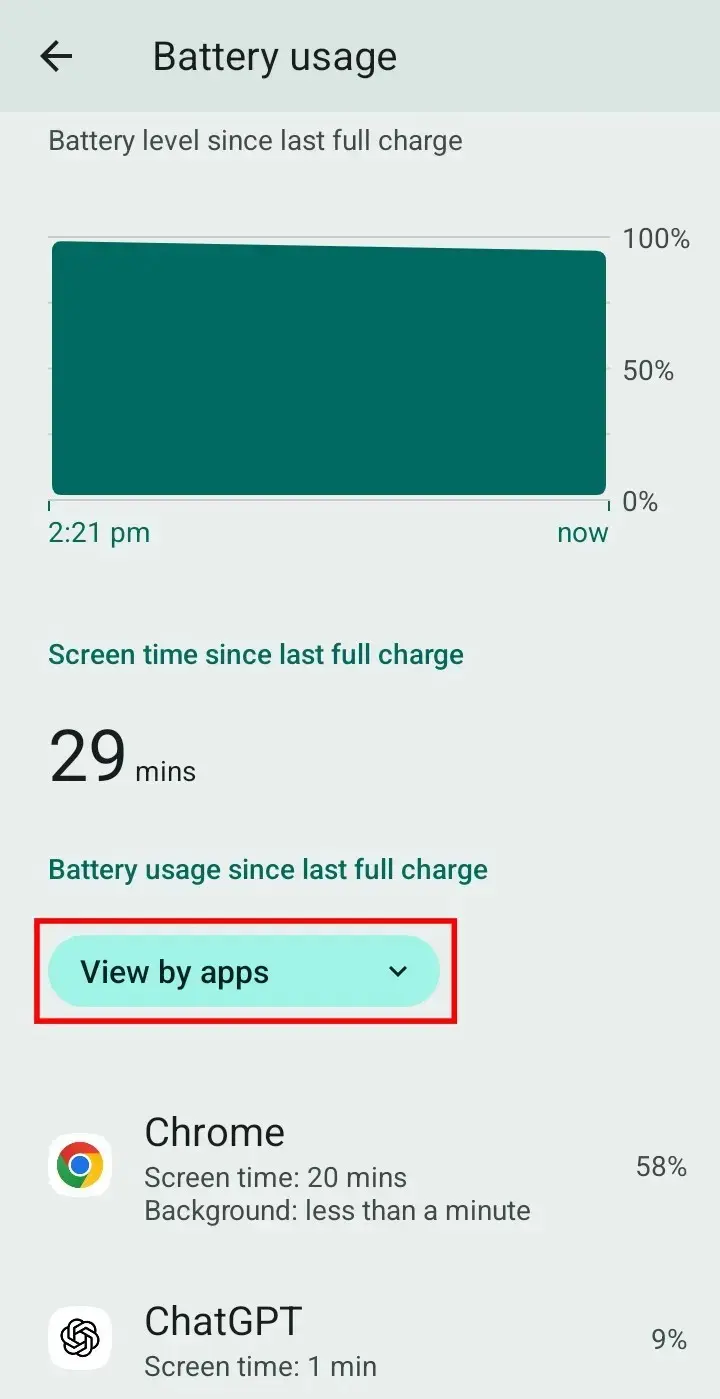
Fix 1: Check Battery Usage First
This is a useful starting point for diagnosing many battery-drain problems. It helps show which app or system feature is consuming power, so you don’t waste time adjusting settings that aren’t the likely cause.
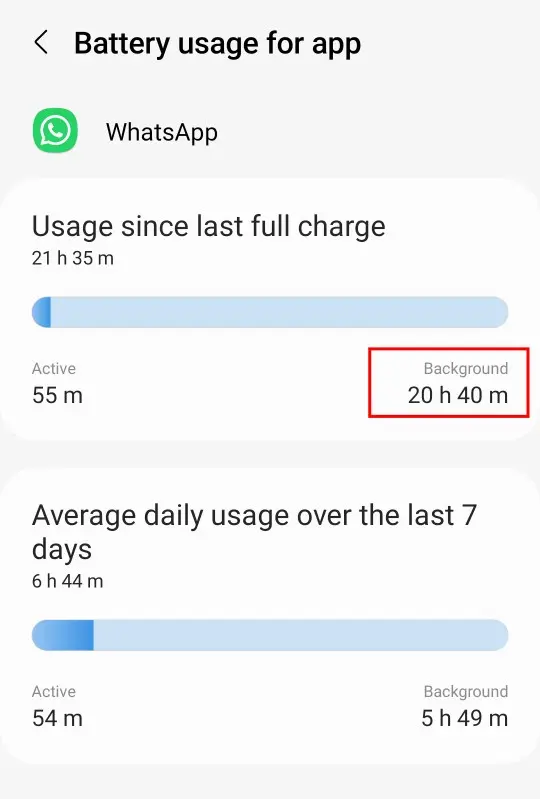
Fix 2: Check for a Problematic App or Background Activity
What this addresses: Battery Usage results showing one app using an unusually large share of power, or drain that started right after installing or updating an app.
Why it happens: Apps that keep running, syncing, or refreshing in the background — especially after an update — can use far more battery than normal, even when you aren’t actively using them.
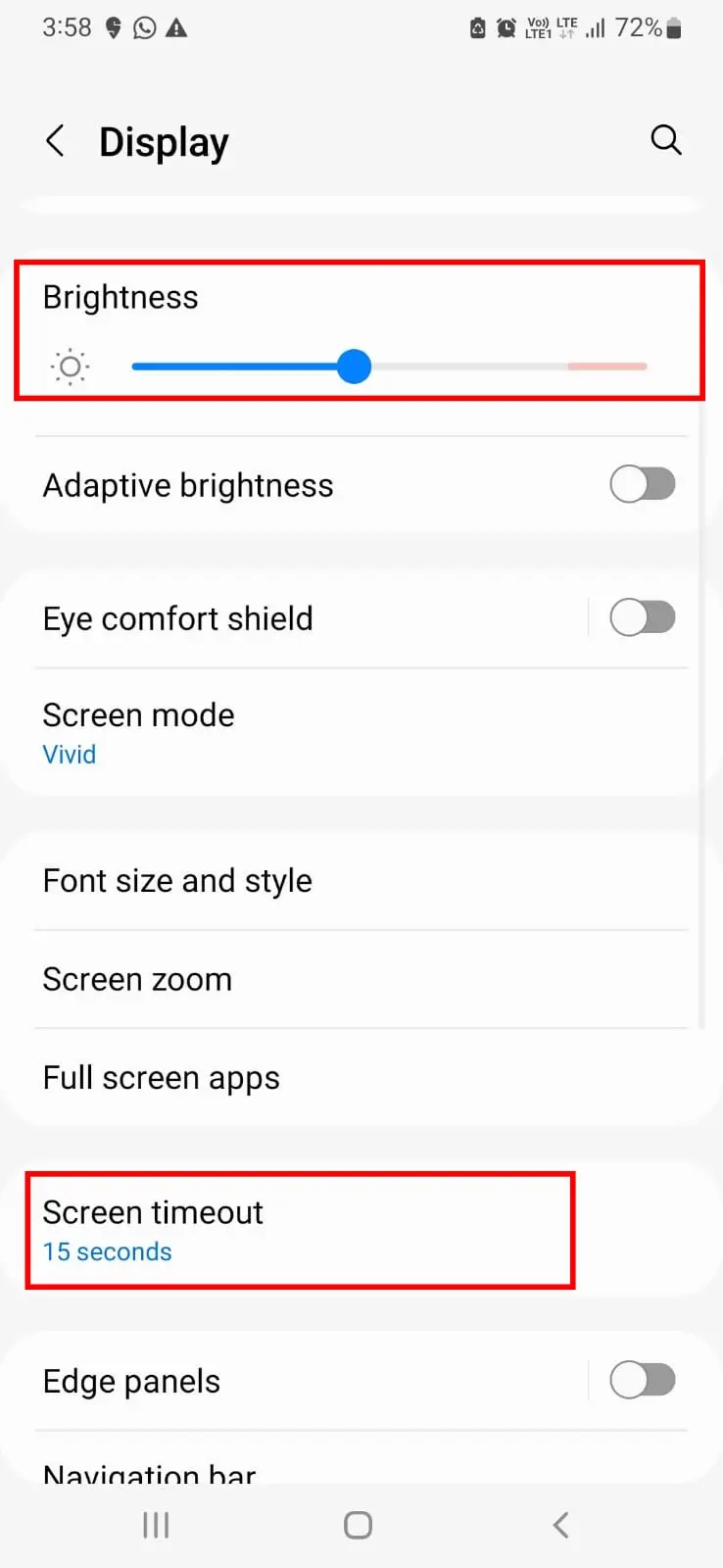
Fix 3: Reduce Screen and Display Battery Drain
What this addresses: Battery Usage shows the screen/display as the top consumer.
Why it happens: Brightness, screen-on time, high refresh rate, and features like Always On Display all use real power, and it adds up quickly with heavy use.
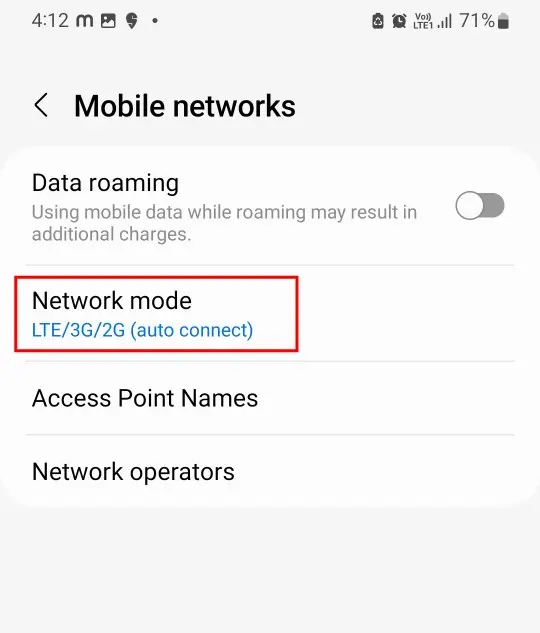
Fix 4: Check Mobile Network, 5G and Weak Signal
What this addresses: Battery Usage shows mobile network or cellular activity as unusually high.
Why it happens: When signal is weak, your phone works harder to stay connected, which can noticeably increase battery use. This is a reasonable explanation in areas with poor coverage, but it should not be assumed as the cause without checking Battery Usage first — not every battery drain is network-related.
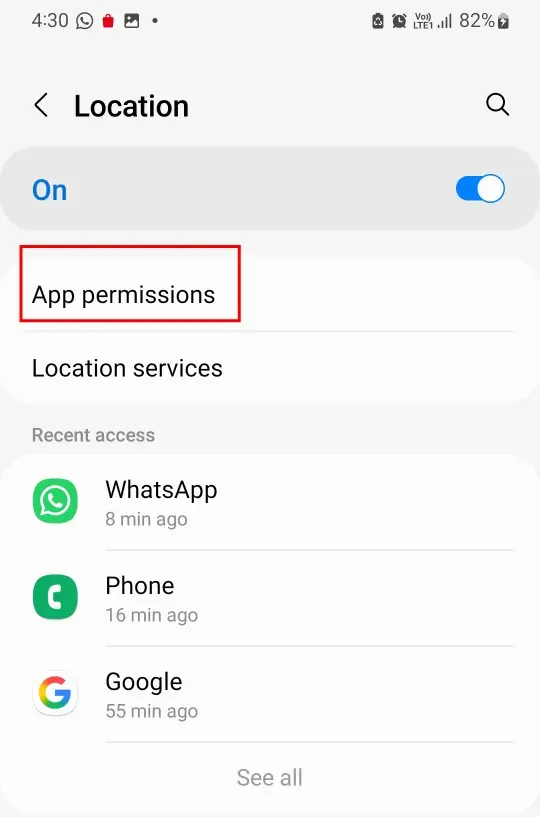
Fix 5: Check Location, Sync and Other Background Activity
What this addresses: Battery draining noticeably while the phone is idle, overnight, or not actively in use.
Why it happens: Location tracking, account syncing, and notification services can continue running in the background even when the screen is off.
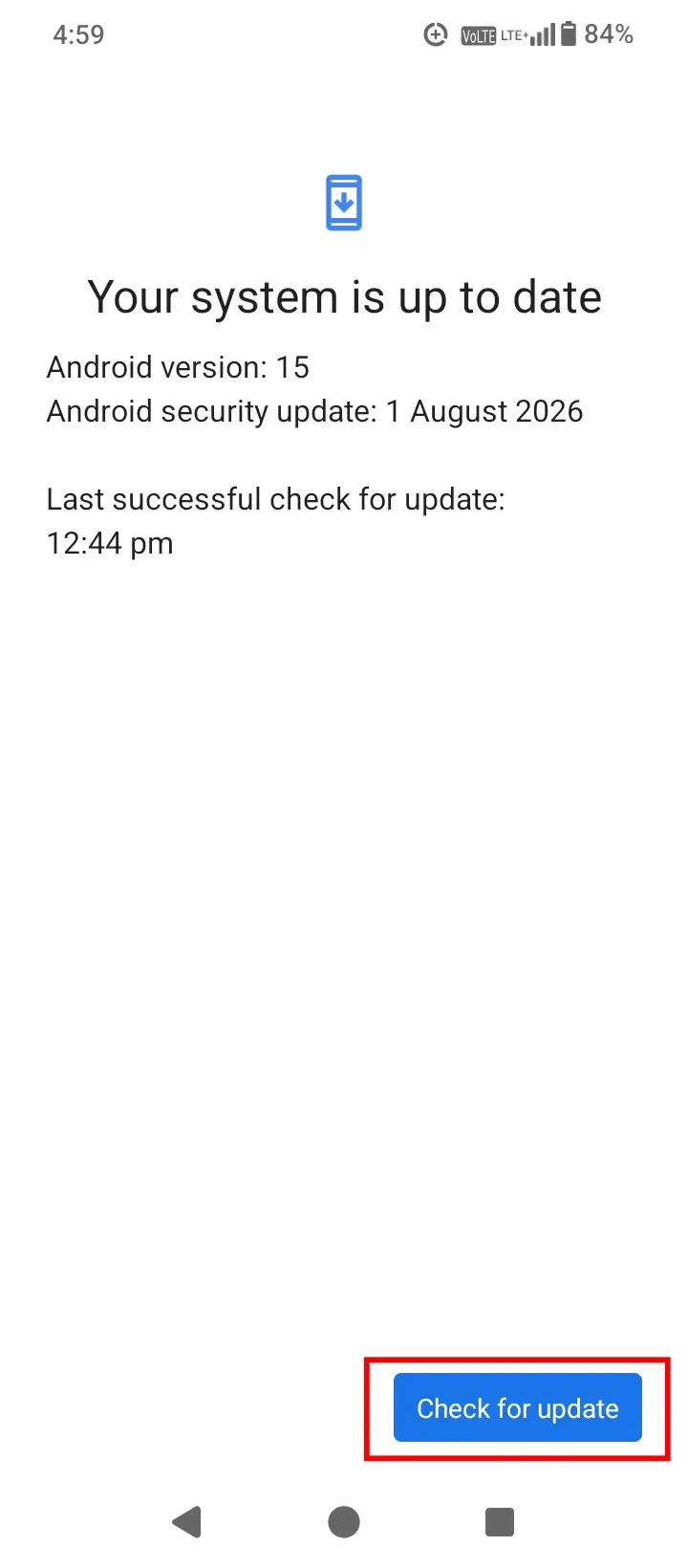
Fix 6: Check for Recent App or Android Update-Related Drain
What this addresses: Drain that began right after an app or system update.
Why it happens: After an update, your phone may perform additional background activity for a period of time. In some cases, an app update may also introduce a problem that increases power use.
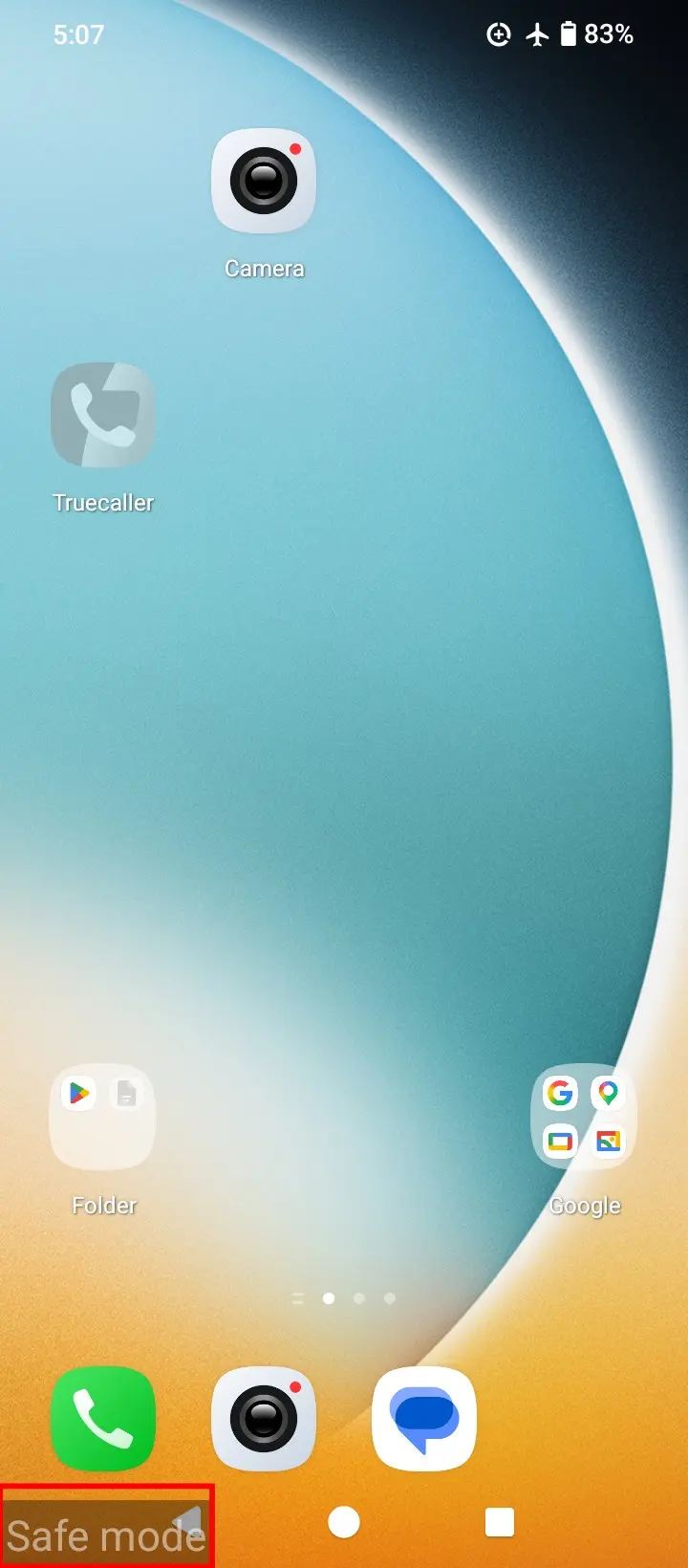
Fix 7: Use Safe Mode When No App Is Obviously Responsible
What this addresses: Use this step when Battery Usage and the earlier checks have not identified a clear cause, but the battery is still draining unusually fast. Some users report extreme cases — like battery dropping several percent in just a couple of minutes with no obvious app running. These are real-world reports rather than confirmed technical causes, but they’re a good reason to test for a third-party app using Safe Mode.
Why it happens: A downloaded app can sometimes contribute to unusual battery drain. Safe Mode provides a practical way to check whether third-party apps are involved.
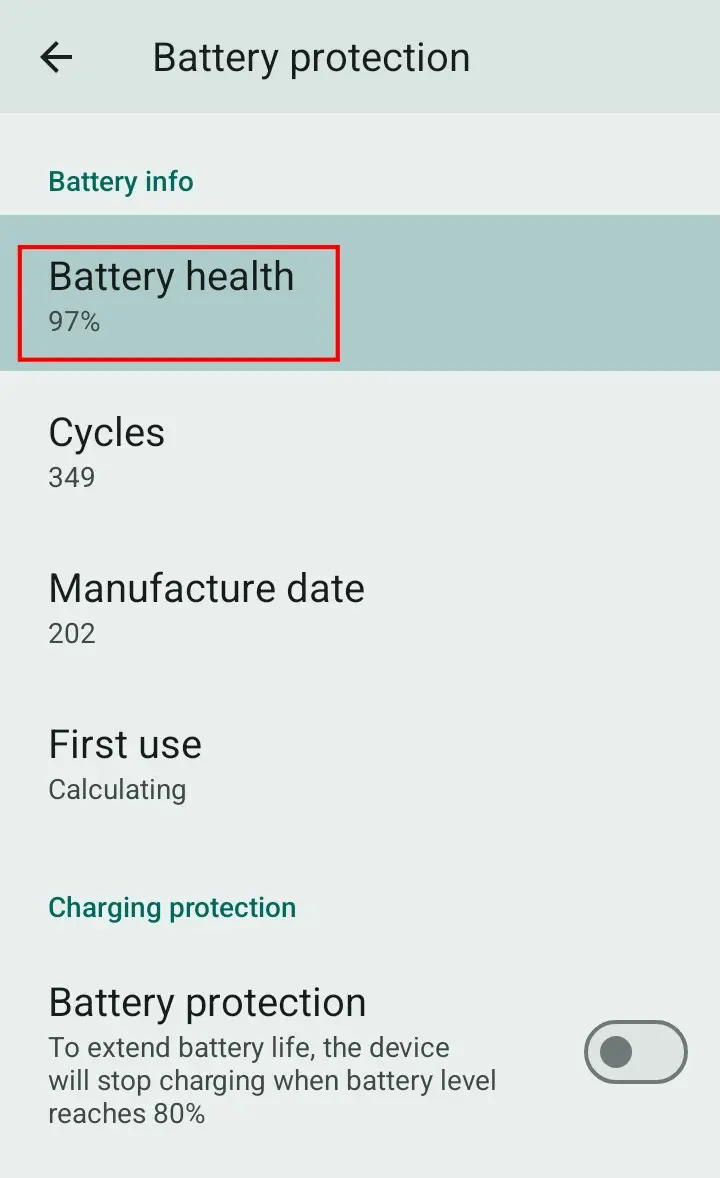
Fix 8: Check Battery Health, Aging and Abnormal Heat
What this addresses: Battery life that has gradually gotten worse over months or years (likely aging), or rapid drain happening together with unusual heat.
Why it happens: Batteries lose capacity over time with normal use, which is a separate issue from an app or setting causing excess power draw. Heat combined with rapid drain can point to heavy processing, a software issue, or — in rarer cases — a battery problem that needs professional attention.
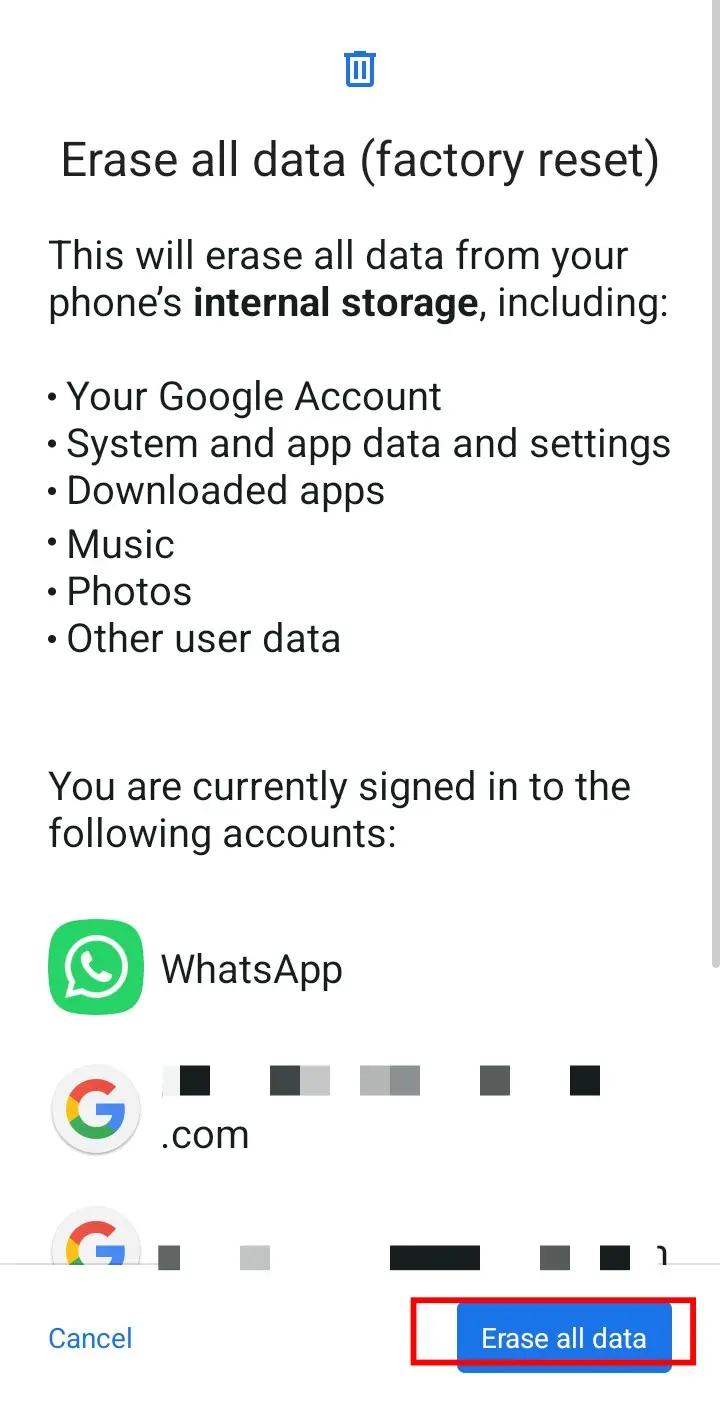
Fix 9: Factory Reset or Professional Service — Last Resort
⚠️ WARNING: A factory reset erases data stored locally on the phone unless it has been backed up, and resets installed apps and device settings. Back up all important data before proceeding. Make sure you have the account credentials needed to set up the device again after the reset.
What this addresses: Battery drain that remains unexplained after working through the steps above, including Battery Usage checks, app troubleshooting, and Safe Mode.
Why it happens: A software issue that normal troubleshooting can’t identify may sometimes be resolved by resetting the device to its original state. However, a factory reset is not guaranteed to fix battery drain, especially if the cause is battery aging or a hardware issue.
How to Confirm a Fix Actually Worked
After making any change, don’t judge the result immediately. Let the phone run normally for several hours (or overnight, if the drain happened while idle), then return to Battery Usage and compare the results. If the previously high consumer has dropped and overall battery percentage loss has slowed, the fix worked. If not, move to the next relevant step in the diagnostic path above.
Preventing Fast Battery Drain Going Forward
Once you’ve identified and fixed the actual cause, these habits can help keep battery drain under control:
- Keep apps and Android software updated.
- Periodically review which apps have “Always allow” location access.
- Use Battery Saver or Power Saving Mode when you know you’ll be away from a charger.
- Avoid leaving unused accounts syncing in the background.
- Check Battery Usage occasionally, even when things seem normal, so you notice new problems early.
Frequently Asked Questions
Why is my phone battery draining so fast?
Start with Settings → Battery → Battery Usage to see which app or system feature is using the most power. Common causes include background apps, screen use, weak network signal, location activity, recent updates, and battery aging.
How can I find out what is draining my phone battery?
Open Battery Usage in your Settings app and look for the highest power consumers. Use that result to pick the matching fix instead of changing several settings at once.
What should I do if Battery Usage doesn’t show an obvious app causing the drain?
Check background activity, location, and syncing first. If the cause still isn’t clear, use Safe Mode to test whether a third-party app is responsible.
Why is my phone battery draining fast even when I’m not using it?
Idle or overnight drain is usually linked to background apps, syncing, location services, or weak network signal continuing to run while the screen is off. Check Battery Usage, then review background activity and network conditions.
Why did my battery start draining fast after an app update or Android update?
A recently updated app may be using more power in the background, or your phone may be running temporary post-update processes. Check for further updates, restart your phone, and monitor whether drain slows down.
Can weak cellular signal cause faster battery drain?
Yes, in areas with weak signal, your phone can use more power trying to maintain a connection. Check Battery Usage to confirm mobile network activity is unusually high before assuming this is the cause.
Is a sudden, extreme battery drop always a sign of a serious problem?
Not necessarily. Some users report very rapid percentage drops, such as losing several percent within minutes. These are individual reports rather than a confirmed universal cause, so they should be investigated through Battery Usage and Safe Mode rather than assumed to be a specific issue.
Should I factory reset my phone because the battery is draining fast?
Only as a last resort, after trying the diagnostic steps above. Back up your data first, since a factory reset erases locally stored data and isn’t guaranteed to fix the drain.
Is fast battery drain always a sign that the battery needs replacing?
No. It can also come from apps, background activity, screen settings, network conditions, or a recent software change. Diagnose the pattern before assuming the battery itself is at fault.
The Bottom Line
Fast battery drain can have several possible causes, so the safest approach is to identify the pattern first using Battery Usage. Work through the diagnostic path that matches what you’re seeing — one high-usage app, heavy screen use, weak signal, background activity, or a recent update — and recheck after each change. If the drain continues even after Safe Mode testing, check for abnormal heat or battery aging before considering a factory reset, and treat that as a true last resort with your data backed up.
Sources: Samsung Support — Battery draining fast on Galaxy phones and tablets | Samsung Support — What to do when your Galaxy device battery drains faster | Android.com — How to save battery on your Android phone